

Integrations
Connect HubSpot to VibeSell
VibeSell reads your contacts, companies, deals and their history from HubSpot, so every call starts with a brief. After the call it proposes the updates the conversation supports, and writes them to HubSpot only when you approve.
Before you start
- A VibeSell account. Any plan. Connecting HubSpot costs nothing extra.
- HubSpot permissions. Super Admin, or the App Marketplace access permission in your HubSpot account. HubSpot only lets these users install apps; a Super Admin can grant the permission under Settings, Users & Teams.
Connect
You can start from VibeSell or from HubSpot. Starting from HubSpot, find VibeSell in the HubSpot App Marketplace, choose Install and sign in to VibeSell when asked, then carry on from step 3. Starting from VibeSell takes about two minutes.
Open HubSpot under Integrations
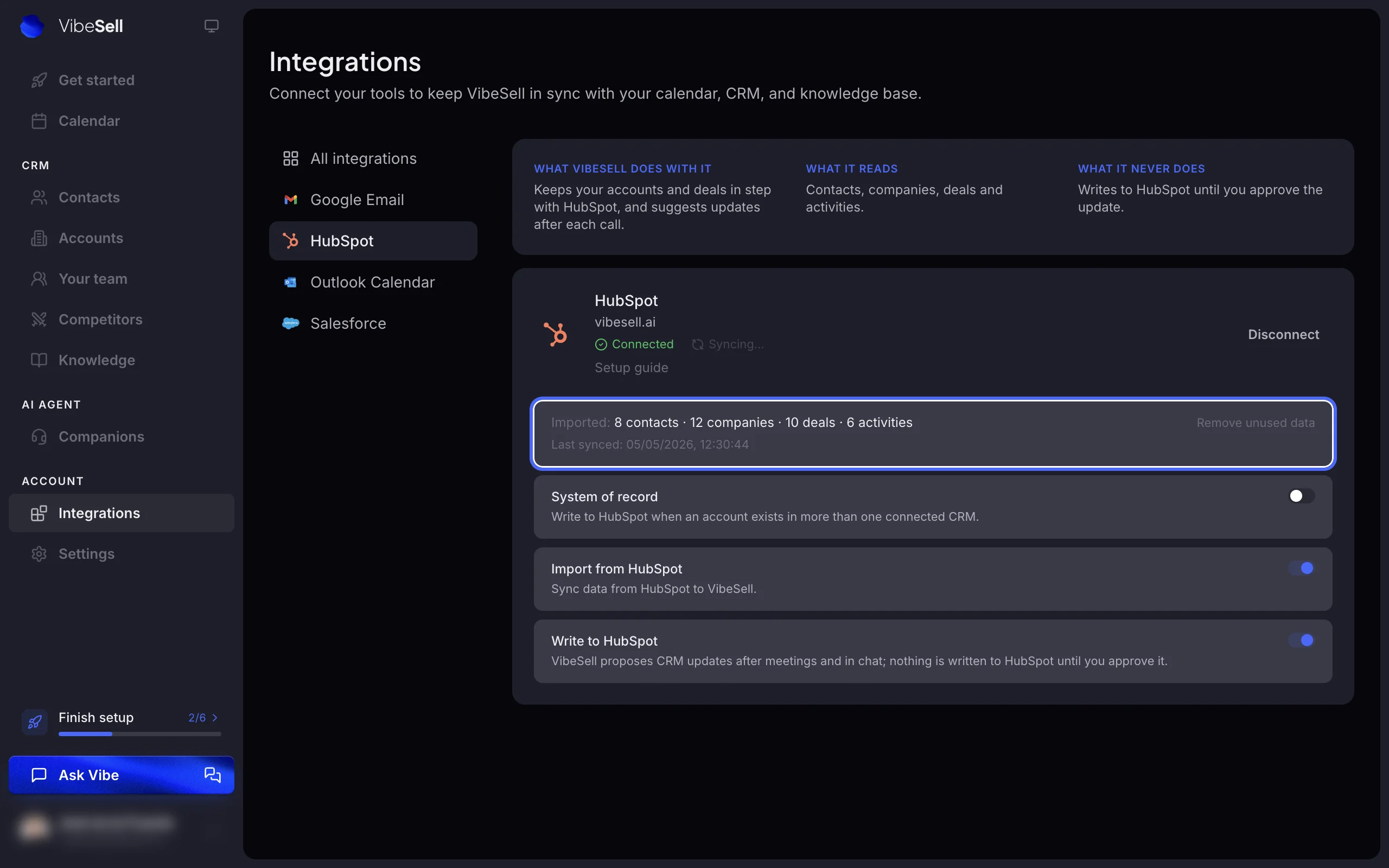
In VibeSell, open Integrations in the sidebar and choose HubSpot.
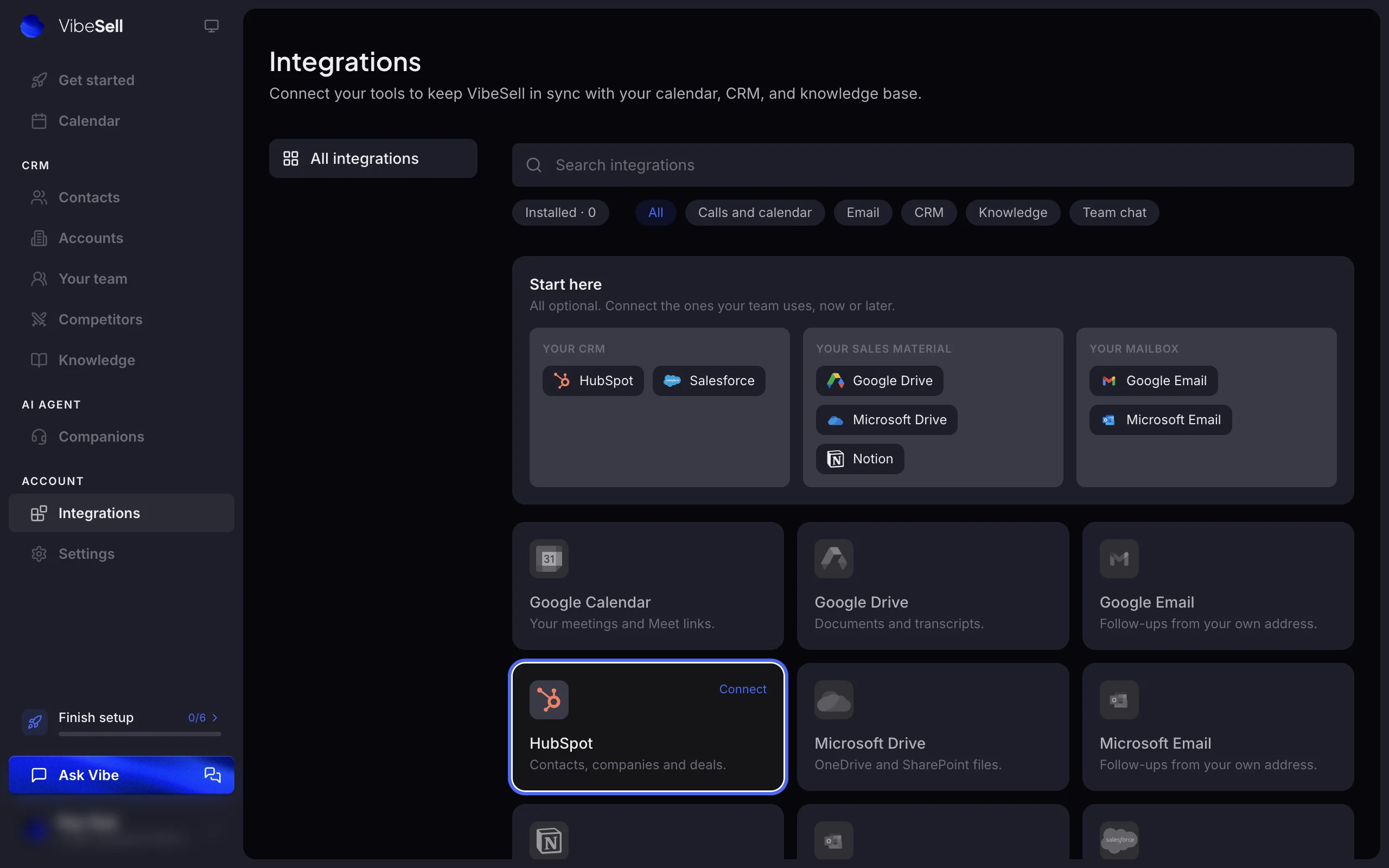
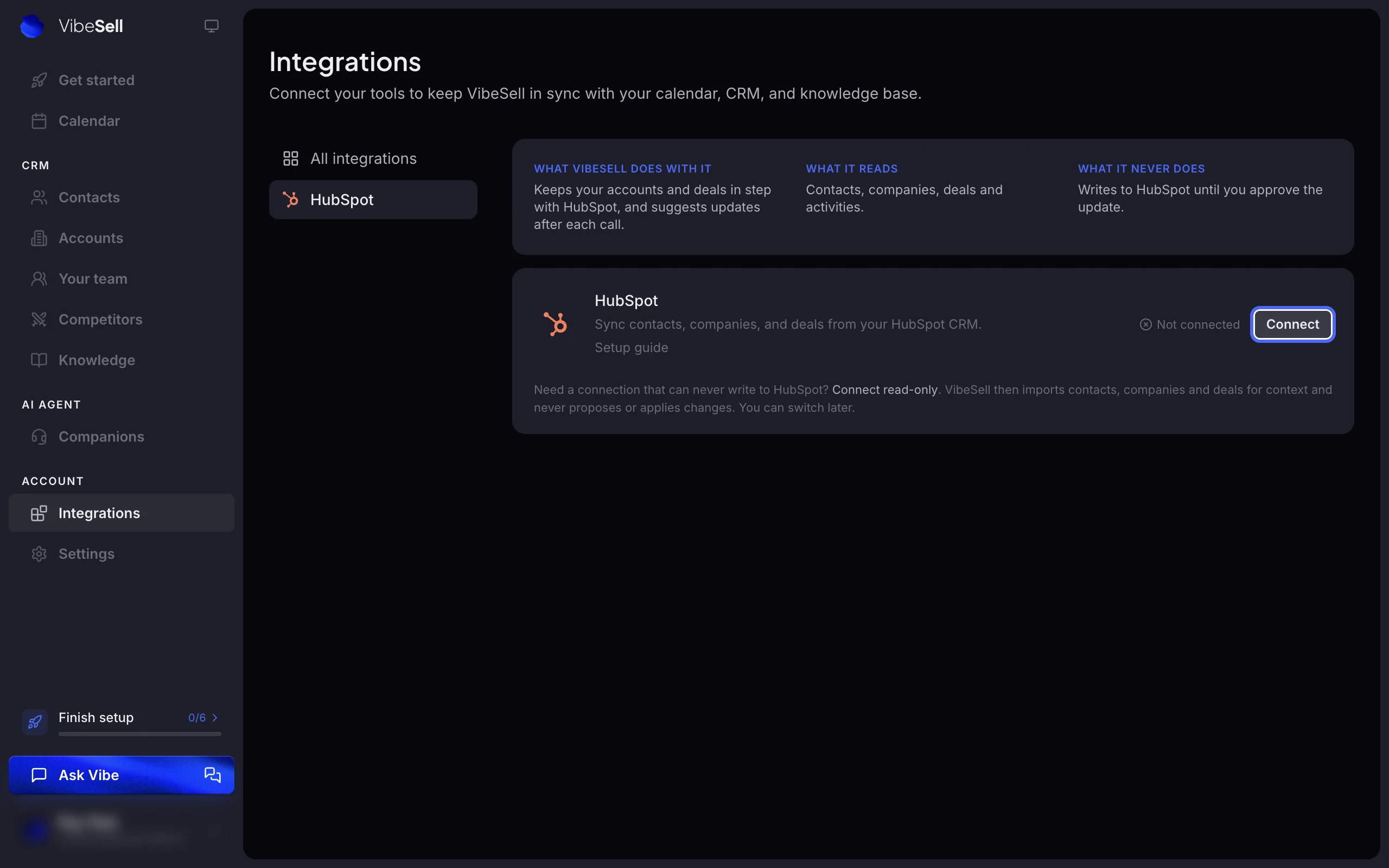
Click Connect
The page sums up what VibeSell does with HubSpot, what it reads and what it never does. Click Connect and VibeSell sends you to HubSpot.
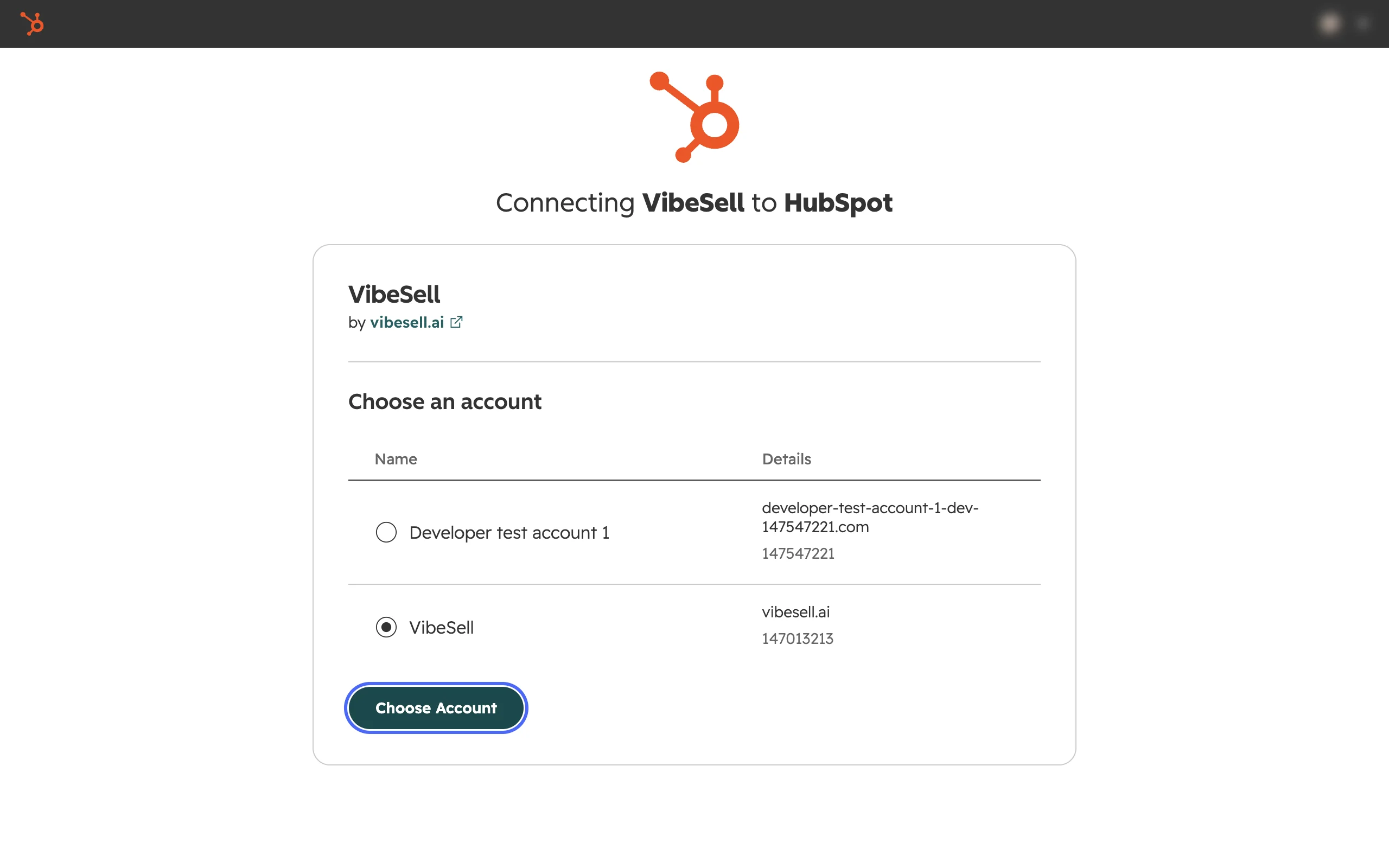
Choose your HubSpot account
Pick the HubSpot account to connect and click Choose Account.
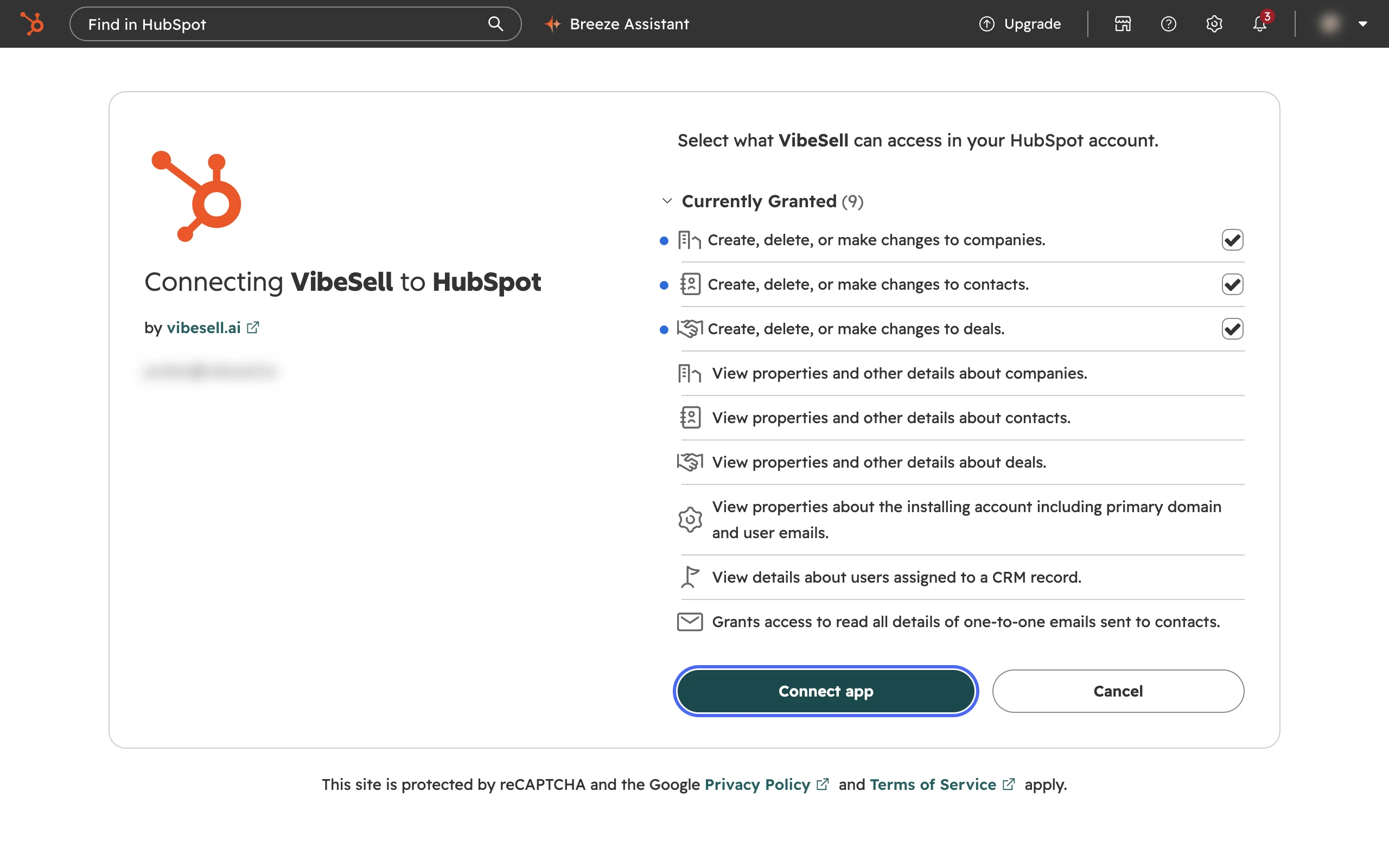
Approve access in HubSpot
HubSpot lists what VibeSell can read and change. The three permissions to change companies, contacts and deals carry a tick box: untick them and the connection can only read.
Let the first sync run
HubSpot sends you back to VibeSell, which imports your contacts, companies, deals and their activity. They appear under Contacts and Accounts. Large accounts take longer. From then on VibeSell checks HubSpot for changes every 15 minutes.
What VibeSell reads and writes
VibeSell writes to HubSpot only the changes you approve.
| HubSpot object | Access | What it is for |
|---|---|---|
| Contacts | Read and write | Briefs and guidance; creates or updates the contacts you approve. |
| Companies | Read and write | Account research and briefs; creates or updates the companies you approve. |
| Deals and pipelines | Read and write | Where each deal stands; updates the deal fields and stages you approve. |
| Owners | Read | Matches records to the VibeSell user who owns them. |
| Calls, meetings and emails | Read | The account history that briefs and guidance draw on. |
| Notes | Read and write | Account history; adds the call notes you approve. |
| Tasks | Read and write | Account history; creates the follow-up tasks you approve. |
Using it
Before the call
The meeting brief draws on the contact, the company, open deals and past activity in HubSpot.
During the call
Live guidance knows the account's history, so its answers fit where the deal stands.
After the call
VibeSell proposes updates to contacts, companies and deals, a note for the call and follow-up tasks. Review them on the meeting's Post-meeting tab and approve the ones you want written to HubSpot.
Disconnect
In VibeSell, open Integrations, choose HubSpot and click Disconnect. VibeSell keeps the contacts, companies and deals it imported, so connecting again later matches them instead of creating duplicates; the activity history it imported is removed. To clear out imported records you no longer need, choose Remove unused data on the same card before you disconnect. You can also uninstall VibeSell in HubSpot, under Settings, Integrations, Connected apps.

Help
Something not working, or a question about your data? Write to support@vibesell.ai. How VibeSell handles your data is on Privacy & transparency.
Can’t find what you need? Write to support@vibesell.ai.